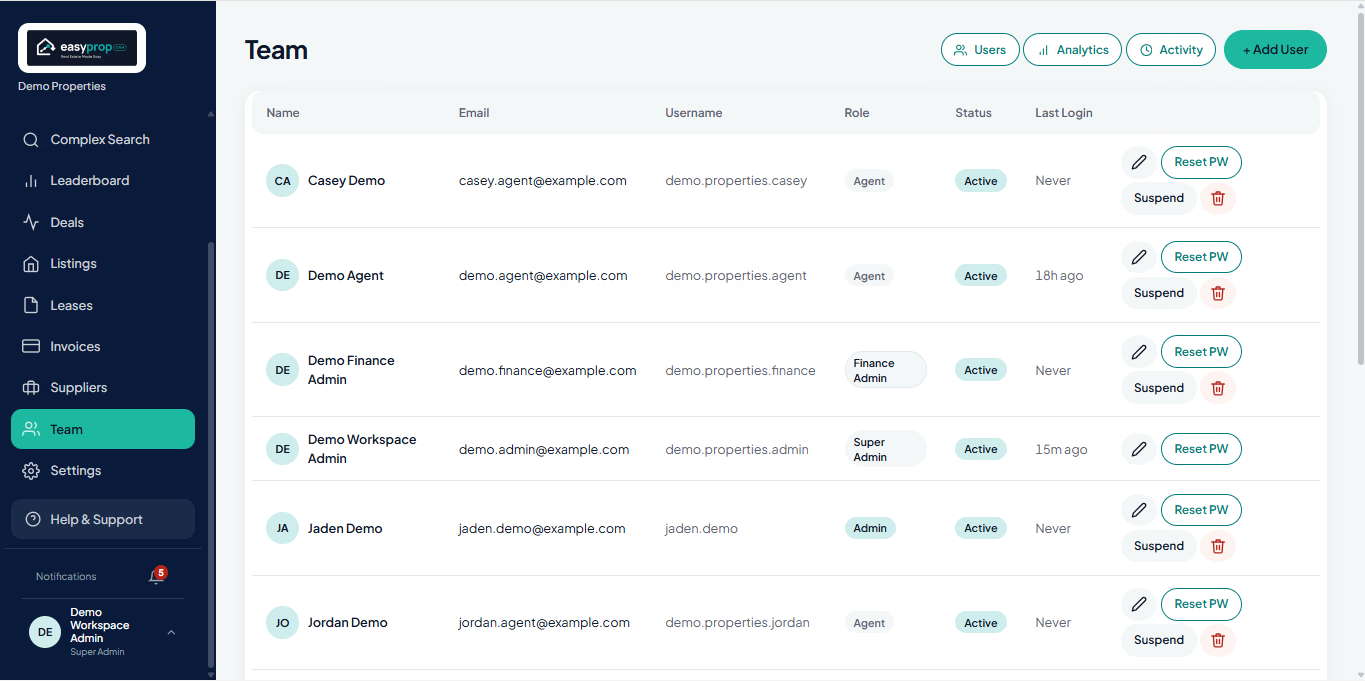
How does an admin add or suspend an agency user?
Authorised admins can add a user, set their role, reset access or suspend an account from Team. Assign or reassign contact work separately.
 Log in
Learn where authorised admins add users, set roles and update agency details.
 EasyPropCRM
A practical guide, one question at a time.
Authorised admins can add a user, set their role, reset access or suspend an account from Team. Assign or reassign contact work separately.
Agency name, logo, email signature and billing details can be configured by authorised roles. Check a test invoice after changes.
Navigation follows your role; ask your administrator if your access needs to change.
Short answers to the questions that come up after the main details.
Explore the help centreSuspension blocks access while the user record and history remain. An authorised admin can reactivate the account.
Company name, logo, banking and VAT details are in authorised Settings. Check a sample PDF after editing them.
One subscription for deals, billing, admin and portal syndication. See how EasyPropCRM fits your agency with a focused demo.