 Log in
Team roles and permissions in a real estate CRM
Give colleagues access that matches the work they need to do. Combine agency roles with clear contact assignments so the right person can find and maintain the right records.
Team & permissions: the essentials for your property team
Plan responsibilities before inviting the wider team.
Review access and assignments when staff join, move roles or leave.
- Start with responsibilities, then configure access.
- Distinguish role permissions from contact assignment.
- Check real tasks with each role before rollout.
What do CRM roles and permissions control?
Roles and permissions determine which areas and actions are available to a person in the agency’s CRM. An agent working assigned contacts, a finance colleague preparing invoices and an administrator managing the workspace have different responsibilities. Access should reflect those responsibilities rather than everyone sharing one account with the same privileges.
EasyPropCRM provides role-based access for the internal agency team. The areas a user sees depend on their role, while contact assignment also affects their daily work. Configure access through an authorised administrator and test the actual tasks each person needs to perform. A role name alone is not enough to establish that every detail is configured as intended.
How should an agency plan its team roles?
List the work before listing the people: contact conversations, deal updates, lease administration, invoicing, reporting and user management. Identify who performs each task, who provides cover and who is responsible for reviewing unusual changes. This gives the administrator a practical basis for selecting the available roles.
Use the current product’s permission options rather than assuming every agency-specific job title becomes a custom role. A small agency may have one person covering several responsibilities, while a larger team may divide them. Discuss that structure during setup and check that the resulting access supports the work without giving people unrelated control simply for convenience.
How are contact assignment and permissions different?
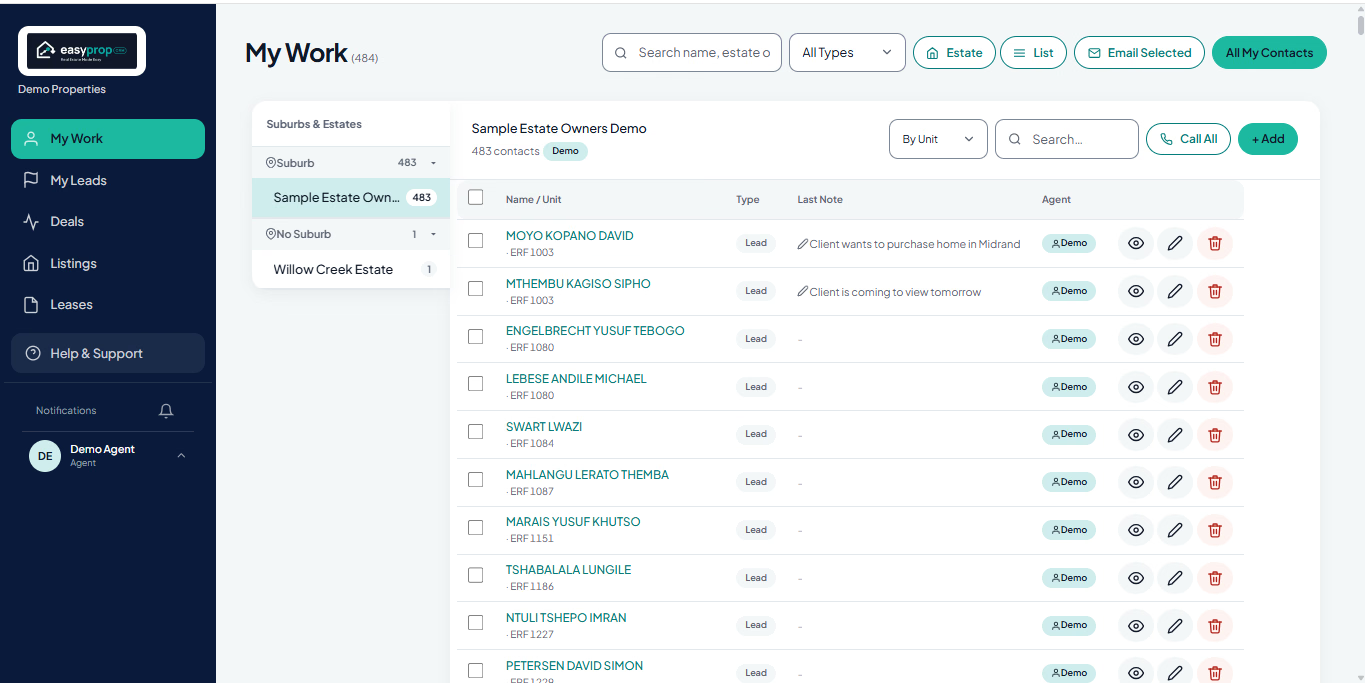
A role determines the areas and actions available to a user. Assignment identifies the contacts that an agent is expected to work on, particularly in My Work. A person can therefore have an appropriate agent role yet still be missing a contact because the assignment has not been set as expected.
When a colleague cannot find something, check both questions: are they allowed to access the relevant area, and is the record assigned or organised correctly? Avoid creating another contact as a workaround. A duplicate can separate the history and confuse reporting. Ask an authorised administrator to resolve the actual access or ownership issue.
How should finance and document access be reviewed?
Invoices, banking details and personal documents need deliberate handling. Identify who prepares billing, who reviews exceptions and who can manage related configuration. Review the actual document and financial workflows with the responsible staff so that the agency understands the boundaries in the current account.
Do not assume a broad label such as “finance” describes every individual action without testing it. Use a sample invoice and a sample document with personal information removed. Confirm which colleagues can find, change or retrieve what they need. The agency should combine product permissions with its own review, sharing and record-retention procedures.
What should happen when someone joins or changes roles?
For a new colleague, create the authorised user access, select the relevant role and prepare the contacts they will handle. Give them a complete task to practise, such as locating an assigned contact and recording a follow-up. This is more informative than simply checking that they can sign in.
When responsibilities change, review both permissions and ownership of active work. A departing agent may have upcoming callbacks, open opportunities or clients expecting a response. Reassign those responsibilities through the administrator before access is removed or changed. Keep the handover understandable so the incoming colleague can continue without relying on the previous user’s personal account.
How should a team test permissions before rollout?
Choose a small set of representative tasks for each role and verify them in the configured workspace. An agent should be able to find the intended contacts; a finance user should be able to complete the necessary billing work; an administrator should understand the user-management process. Record any mismatch and resolve it before adding the wider team.
Include a temporary cover scenario and a role change in training. Confirm the route for asking about access rather than encouraging staff to share credentials. EasyPropCRM includes training and local support, while the agency remains responsible for deciding who should perform each task and reviewing that decision as the business changes.
Who needs a paid CRM user, and do clients log in?
EasyPropCRM is designed for the internal agency team. The base subscription includes up to three users, with additional users priced separately as the team grows. Count the agents, administrators and managers who need their own access, then agree their responsibilities and permissions during the included setup and training.
Clients do not log into a client portal. They receive invoices, emails and calendar invitations through the relevant workflows. Do not share an internal login with a client as a substitute for that communication. When someone joins, changes role or leaves, review their access and assigned work together so the right colleague can continue the relationships.
A practical team access workflow
Map responsibilities
List the contacts, administration, billing and management tasks each person needs to perform, including temporary cover and review responsibilities.
Configure users and roles
Have an authorised administrator apply the appropriate available role. Set relevant contact assignments and avoid shared sign-ins as a shortcut.
Test representative work
Ask each role to complete a real task using safe sample records. Check both the ability to do necessary work and access to unrelated areas.
Review changes
Revisit access when someone joins, changes duties or leaves. Transfer active commitments and verify the new owner can find the relevant records.
Two different questions about access
| Situation | What to check | Practical response |
|---|---|---|
| An area is missing from the menu | Role permissions. | Ask an administrator to review the required responsibility. |
| A contact is absent from My Work | Contact assignment. | Confirm the intended owner before creating another record. |
| A colleague is covering leave | Access and active task ownership. | Arrange and test the handover before cover begins. |
| A staff member leaves | User access and outstanding work. | Transfer responsibilities and update access through the administrator. |
- Name the authorised workspace administrator.
- Map roles to actual tasks rather than job titles alone.
- Confirm contact assignment separately from role access.
- Test financial and document work with safe sample records.
- Plan leave cover and staff departures.
- Review access when responsibilities change.

Team & permissions FAQs
Short answers to the questions that come up after the main details.
Explore the help centreWhy do colleagues see different CRM menus?+
The areas shown depend on their roles. That can be appropriate when an agent, finance user and administrator have different responsibilities. If a needed task is unavailable, ask the authorised administrator to review the role and current permission options rather than sharing another person’s account.
Why is an agent missing a contact they should handle?+
Check the contact’s assignment as well as the agent’s role. My Work focuses on assigned contacts, so a record can exist elsewhere in the workspace without appearing in the expected list. Correct ownership through the administrator instead of adding a duplicate contact.
Can landlords and tenants be added as users?+
EasyPropCRM is for the internal agency team. The current offer does not include client logins for landlords or tenants. Clients receive the relevant invoices, emails and calendar invitations, while authorised staff maintain the underlying contact, lease and financial records.
How can the team confirm the exact permissions available?+
Confirm the exact available actions in the current account during setup, especially for financial information and sensitive documents. Test representative tasks rather than assuming a role name describes every possible permission.
What should an agency do when a user leaves?+
Have the authorised administrator review and update access promptly under agency policy. Transfer active contacts, callbacks and opportunities to the appropriate colleague, and check that the new owner can find the records. Preserve the working context instead of relying on the departing person’s sign-in.
Who needs a paid CRM user, and do clients log in?+
EasyPropCRM is designed for the internal agency team. The base subscription includes up to three users, with additional users priced separately as the team grows. Count the agents, administrators and managers who need their own access, then agree their responsibilities and permissions during the included setup and training.
See team & permissions in EasyPropCRM
Bring a workflow from your agency. Explore the records, responsibilities and next actions with an EasyPropCRM demo or a full-access free month.