 Log in
Import and export property contacts in EasyPropCRM
Move useful property data into a consistent working system. EasyPropCRM includes contact migration, with a practical approach to file preparation, sample checks and ongoing exports.
Contact import & export: the essentials for your property team
Prepare names, contact details, roles and estate information before upload.
Review the resulting records and exceptions before importing the next batch.
- Clean the file before migration.
- Check a sample in the working CRM.
- Keep responsibility for data quality clear.
What does property contact migration involve?
A contact migration moves the agency’s working information from its existing files into a new CRM. Uploading a spreadsheet is only one part of that process. The team also needs to decide which records are current, how fields should be interpreted and who will own the contacts once they are available.
EasyPropCRM includes contact migration during setup. Prepare the fields the agency can verify: names, phone numbers, email addresses, contact types and property location information. A useful migration preserves the context agents need for their next conversation. Moving every old row without review can simply carry inconsistent names, duplicate details and unclear ownership into the new workspace.
How should property contacts be prepared for import?
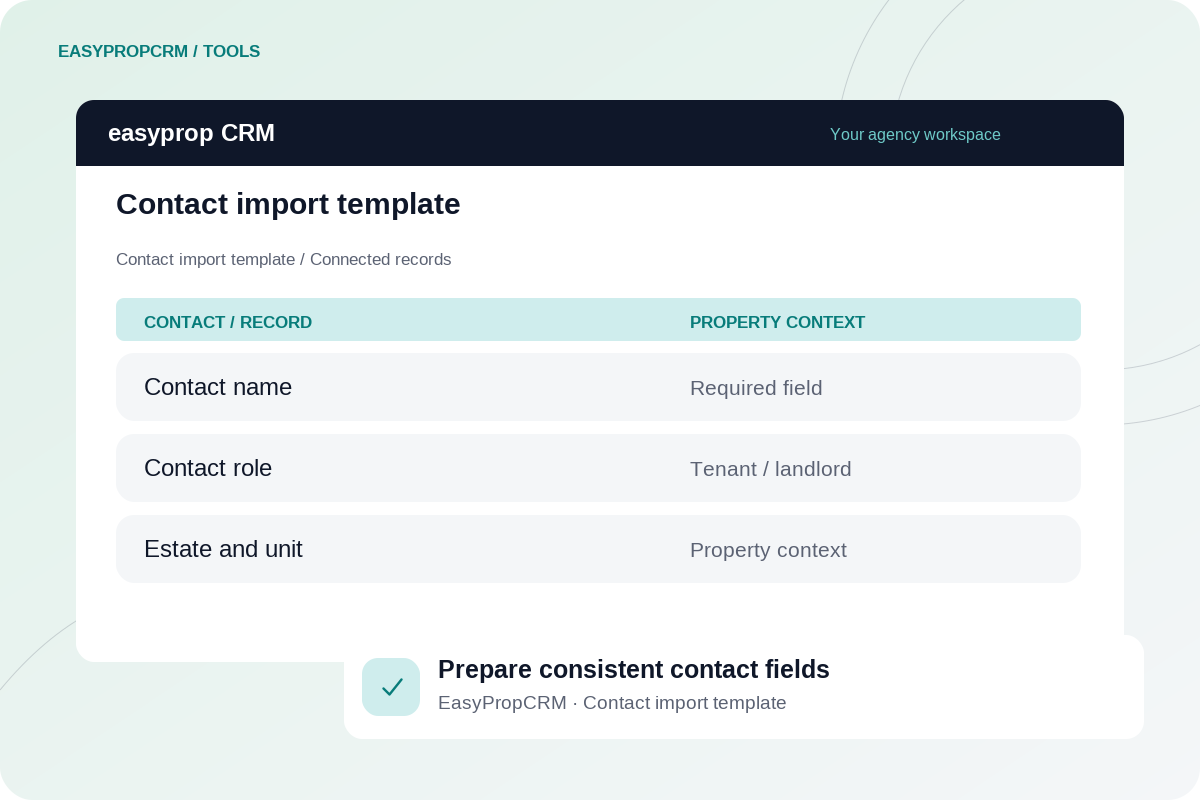
Use the contact import template as the starting point and keep column headings consistent. Preserve phone numbers and identifiers as text so that spreadsheet software does not remove leading zeroes or change long values. Separate first-hand information from assumptions, and leave genuinely unknown fields for review instead of inventing a value.
Standardise suburb, estate and complex names before uploading. Check whether the source includes several contact roles. The current import guidance uses one default contact type per import, while the template’s Type field is a planning aid. Separate batches by role where necessary and confirm the mapping with the person managing migration before proceeding.
How do you reduce duplicate and inconsistent records?
Search the source file for repeated phone numbers, email addresses and names, then review likely matches. A repeated surname alone does not establish a duplicate, and a shared family telephone number needs careful handling. Keep a record of decisions so that a removed row can be explained if an agent later asks about it.
The import workflow can report exceptions such as skipped duplicate phone numbers. Review the summary before uploading the same file again. A successful upload message does not prove every row was added or that all fields were interpreted as intended. Resolve the cause of exceptions and check existing records rather than repeatedly submitting the entire source.
What should you check after a sample import?
Choose a small batch that includes the different roles and location formats in your portfolio. Open the resulting records and compare them with the source sheet. Check names, telephone formatting, email addresses, suburbs, estates and units. Then find the records through both contact search and the estate view.
Assignment deserves its own check. An imported record may be present in the workspace but still need the appropriate agent before it appears in My Work. Have an agent test a real task with the sample, such as finding a tenant and scheduling a renewal conversation. The import is useful when the team can work with the information.
How do exports support agency reporting and handovers?
Exports let an authorised person take available CRM information into another review or working process. EasyPropCRM supports CSV and PDF export actions in relevant areas, while sales and lease reports can be exported to Excel. The available format depends on the type of record or report being used.
Check the selected records, date range and fields before sharing an export. A report of sales activity serves a different purpose from an invoice PDF or a contact file. Save exports where the agency’s access and retention rules apply, and avoid circulating more personal information than the receiving colleague needs for the specific task.
How do you manage an agency migration without losing context?
Name one person to coordinate the source files, agreed mappings and corrections. Keep a protected copy of the original data and use a clear cutoff for changes during the move. Otherwise, an agent may update the old spreadsheet while a different version is being imported, creating uncertainty about which record is current.
Begin with active contacts and an identifiable portfolio, then expand after the pilot checks are complete. Agree where the team will record new conversations from the go-live date. Migration and training are included, but specialised historical files or unusual fields should be discussed during setup so that the agency understands what will be carried over and how.
What does free contact migration mean for your agency?
Contact migration is included with setup and training at no cost. EasyPropCRM helps bring your agency's contact data into the new workspace, while your team supplies the source records and checks that the resulting information is useful. Agree the files, fields and migration schedule during onboarding instead of assuming every old system exports the same structure.
Prepare a small set of known records to check after import, including different contact roles, estates and assigned agents. Find those people in the CRM and compare their key details with the agreed source. Resolve duplicates and missing context before asking staff to rely on the full list. The account setup target is within 24 hours; migration and review timing should be agreed separately.
A practical contact import workflow
Prepare a controlled source file
Choose the current file, remove avoidable formatting problems and standardise roles and locations. Keep an original copy so that changes can be traced by the migration owner.
Review the mapping and sample
Use the expected template and confirm how each column will be used. Import a representative sample through an authorised user before committing a larger batch.
Inspect records and exceptions
Compare the CRM records with the source. Review skipped rows or duplicate warnings, and test search, estate grouping and assignment with an agent.
Complete the move and handover
Import the reviewed batches, assign responsibilities and agree when daily updates move into EasyPropCRM. Keep a clear process for reporting corrections after go-live.
Import preparation that prevents common problems
| Source issue | Why it matters | Preparation |
|---|---|---|
| Phone numbers stored as numbers | Leading zeroes may disappear. | Set the column to text before correcting values. |
| Several names for one estate | Contacts become harder to browse. | Apply the agency’s preferred estate naming. |
| Mixed contact types | One default import type may not fit all rows. | Plan separate reviewed batches by role. |
| Repeated source submissions | Existing contacts may generate exceptions. | Read the import summary before retrying. |
- Identify the owner and current version of the source file.
- Keep phone numbers and identifiers in the correct text format.
- Standardise location names before import.
- Plan contact-type batches using current import guidance.
- Check a representative sample and the import summary.
- Confirm assignments and the date daily updates move to the CRM.

Contact import & export FAQs
Short answers to the questions that come up after the main details.
Explore the help centreIs contact migration included in EasyPropCRM?+
Yes. The subscription includes setup, contact migration and training. Discuss the structure and condition of your files during onboarding, especially if they include unusual fields or historical documents. A clean, representative sample helps establish what the team needs to bring across.
Can the import template assign a different type to every row?+
The template’s Type column helps organise the source information, but current import guidance uses one default contact type per import. Plan separate batches where necessary and confirm the mapping before upload. Do not assume every planning column becomes a supported CRM import field.
What should I do with skipped duplicate phone numbers?+
Review the import summary and locate the existing record before trying again. Confirm whether the rows refer to the same person or a legitimate shared number. Correct the source or ask the migration owner to resolve the case rather than repeatedly uploading an unchanged file.
Does exporting mean every CRM field is available in one download?+
No single universal export is promised. Available CSV, PDF or Excel outputs depend on the relevant area and report. During setup, list the information your agency needs for reporting or handover and confirm the appropriate export, filters and permissions for each task.
When should the old spreadsheet stop being used?+
Agree a clear working cutoff after the sample and final batches have been checked. From that point, record new activity in EasyPropCRM so the two systems do not drift apart. Retain the source file according to the agency’s access and retention policy.
What does free contact migration mean for your agency?+
Contact migration is included with setup and training at no cost. EasyPropCRM helps bring your agency's contact data into the new workspace, while your team supplies the source records and checks that the resulting information is useful. Agree the files, fields and migration schedule during onboarding instead of assuming every old system exports the same structure.
See contact import & export in EasyPropCRM
Bring a workflow from your agency. Explore the records, responsibilities and next actions with an EasyPropCRM demo or a full-access free month.